Bloated .blend Files Are Quietly Wrecking Your Workflow — Here's How to Clean House
You open a project file your teammate sent over. Blender takes 45 seconds to load it. The viewport lags. Undo takes forever. You glance at the file size — 1.8 gigabytes — and your stomach drops. Nothing in the scene looks complicated enough to justify that. A few characters, some environment pieces, a handful of materials. So where did all that weight come from?
This is one of the most common and least-discussed problems in production Blender work. File bloat doesn't announce itself. It accumulates quietly over weeks of iteration, asset importing, and undisciplined data management. By the time you notice it, you're already dealing with sluggish performance, broken collaboration pipelines, and version control nightmares.
Let's break down exactly what's causing it — and how to fix it without nuking your project.
The Real Culprits Behind Bloated .blend Files
Orphaned Data Blocks
This is the big one. Every time you delete a mesh, swap out a material, or remove a texture in Blender, the underlying data doesn't necessarily get purged. Blender uses a reference-counting system for its data blocks — meshes, materials, images, node groups, you name it. If a data block has no users, it becomes an orphan. Orphaned data still gets saved into the file by default.
Here's where it gets sneaky: Blender has a "Fake User" flag (that little shield icon in the data browser) that's designed to intentionally protect data from being purged. It's useful when you want to save a material you're not actively using. But if it gets applied carelessly — or if you've imported assets from external packs that use it liberally — you end up with hundreds of protected data blocks that serve no purpose in your current project.
Fix: Go to File > Clean Up > Purge All (available in Blender 3.0+). This removes all data blocks with zero users that aren't protected by a fake user. Run it, save, and check your file size. You'll often shave off a significant chunk right there.
For a more surgical approach, open the Outliner and switch the display mode to Blender File or Orphan Data. This gives you a full inventory of everything living in your file, including objects, meshes, materials, and images that aren't linked to anything in your scene. Delete what you don't need.
Texture and Image Data Overkill
Textures are the most reliable way to inflate a .blend file fast. If you're packing external images into the file (via File > External Data > Pack All Into .blend), every 4K texture you've ever loaded — including ones from deleted materials — gets embedded. A single PBR material set at 4K resolution can easily run 50–80MB. Multiply that across a full asset library and you're in trouble.
The fix here is twofold. First, audit your images. In the UV Editor or Shader Editor, check which images are actually being used by active materials. Anything that isn't? Delete it from the data browser. Second, think critically about resolution. Not every texture in your scene needs to be 4K. Background props, small secondary objects, and anything that won't be seen close-up can often run at 1K or 2K without any visible quality loss. Downsizing textures before packing them is a habit worth building.
If you're working on a team, consider keeping textures external and using a shared asset library path instead of packing everything. It keeps files lean and makes texture updates much easier to manage across multiple people.
Unused Materials and Node Group Redundancy
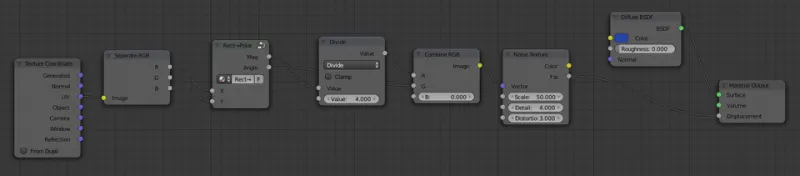
Every time you append a material from another file, Blender may bring along node groups that material depends on. Import the same asset type a few times across different sessions and you can end up with five slightly different versions of the same node group — "Principled Surface," "Principled Surface.001," "Principled Surface.002" — none of which are linked to anything active.
This is especially common when teams share assets without a standardized material library. The bloat compounds quickly.
The Purge All command handles most of this, but you should also manually audit your node groups in the Outliner under Blender File mode. Consolidate duplicates where possible, and if your studio uses a core set of shared node groups, consider building them into a linked library file rather than embedding copies into every project.
Nested Collection and Instance Overhead
Collections with deeply nested hierarchies and heavy instancing can also contribute to file weight, though this is more of a performance issue than a raw file size issue. Still, over-engineered collection structures — especially ones inherited from old project templates or imported scene files — add overhead that compounds with scene complexity.
Keep your collection hierarchy intentional and flat where possible. If you're using geometry node instances or collection instances for scatter and crowd work, make sure you're not duplicating mesh data unnecessarily. Linked duplicates (Alt+D) share mesh data; regular duplicates (Shift+D) don't. That distinction matters at scale.
Diagnostic Tools Worth Knowing
Blender's built-in Statistics overlay in the viewport gives you a real-time count of vertices, faces, and objects, but it won't tell you about data block overhead. For that, the Outliner in Blender File mode is your best friend. Get comfortable reading it.
There are also community-built addons worth checking out. BlendFile Cleaner and similar tools in the Blender Market ecosystem can automate parts of the audit process, flagging unused data and offering batch cleanup options. If you're managing a production pipeline with dozens of files, automation here pays off fast.
For version-controlled projects (Git LFS or Perforce), keeping an eye on file size deltas between commits is a solid early-warning system. A commit that jumps your .blend by 200MB without any obvious new content is a red flag worth investigating immediately.
Prevention Is Cheaper Than Cleanup
Once you've cleaned up a project, the goal is to not let it get that way again. A few habits that professional studios build into their pipelines:
- Run Purge All before every save — or at least before committing to version control. It takes two seconds and keeps accumulation in check.
- Establish a material library workflow early in a project, so everyone is pulling from the same source rather than importing and re-importing assets.
- Set texture resolution standards per asset tier at the start of production. Background assets get 1K. Hero assets get 4K. Stick to it.
- Audit imports — whenever you bring in an external .blend, OBJ, FBX, or GLB, check what came with it in the Outliner before moving on.
File hygiene isn't glamorous. It's the kind of thing that feels like overhead until the day your .blend refuses to open on a deadline and you realize you've been ignoring warning signs for three months. Build the habits now, keep your files lean, and your future collaborators — including future you — will be genuinely grateful.